New in the Amtaar app
The Amtaar Wallet: a complete guide
Your rental income now lands in your Amtaar Wallet. From there you can see every payout you have ever received, withdraw it to your bank account, add money, and put your balance straight into your next investment. This guide walks you through every screen, step by step.
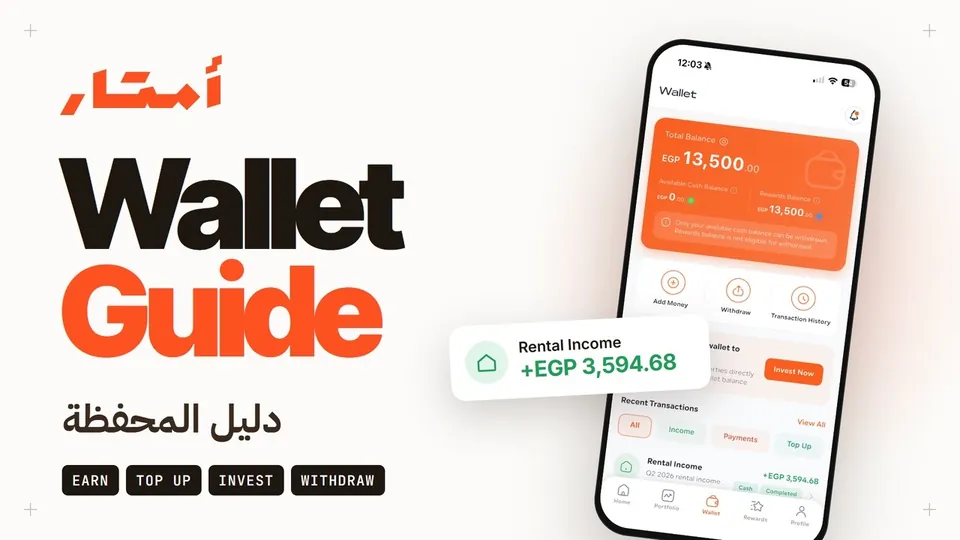
- QuarterlyRental income paid into your wallet
- 1–3 daysFor a withdrawal to reach your bank
- EGP 100Minimum withdrawal
- EGP 2.50Withdrawal fee
Part 1
Your wallet at a glance
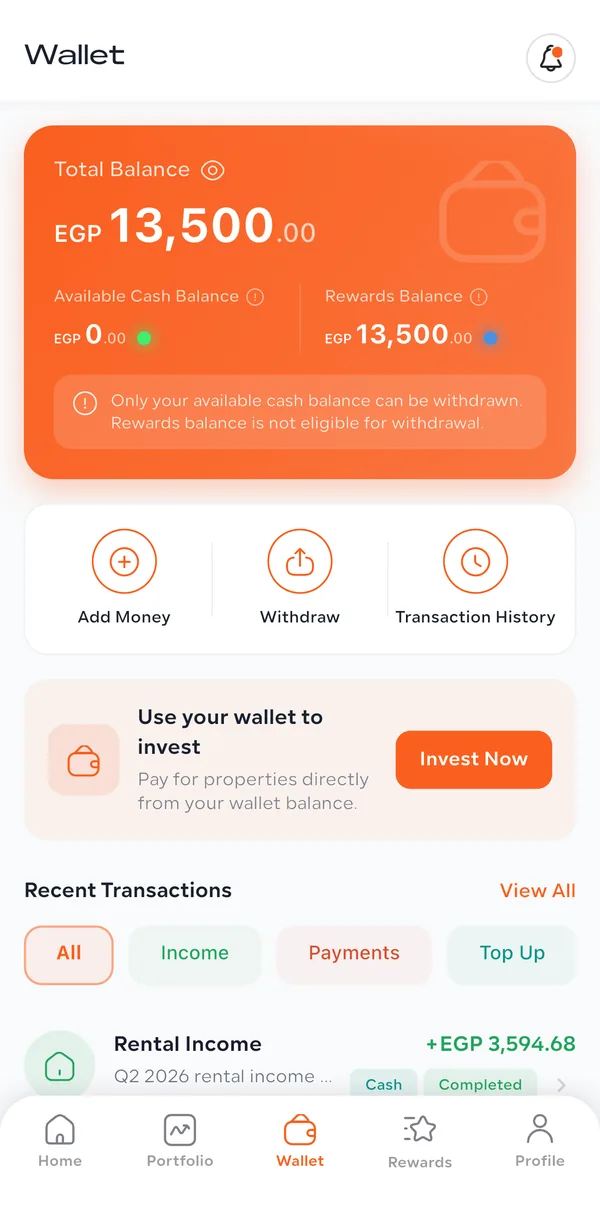
Open the Amtaar app and tap Wallet in the bottom bar. The orange card at the top shows what you hold. Under it are three buttons: Add Money, Withdraw and Transaction History. Under those is your list of recent transactions.
Your wallet holds two kinds of money, and the difference matters:
- Total Balance
- Everything in your wallet: your Available Cash Balance plus your Rewards Balance. Tap the eye icon to hide or show the amount.
- Available Cash Balance (green dot)
- Real money: rental income from your properties and money you have added. You can invest it or withdraw it to your bank.
- Rewards Balance (blue dot)
- Credit Amtaar gives you, such as a referral reward. You can use it towards an investment, but you cannot withdraw it.
All amounts are in Egyptian pounds (EGP). If a property is leased in US dollars, the rent is converted to EGP before it is paid into your wallet.
Part 2
How your rental income arrives in your wallet
Each property you own shares in is rented to a tenant. Once the tenant’s rent for a period has been collected and confirmed, Amtaar calculates each investor’s share and pays it into their wallet as Available Cash.
- When
- Payouts are quarterly and are scheduled for the 1st of the month after each quarter ends: 1 January, 1 April, 1 July and 1 October. Your portfolio shows your next expected payout date. The money is credited once that quarter’s rent has been collected and approved by our finance team. If a tenant pays late, that rent is paid out separately when it arrives, and the line is marked “(late rent)”.
- How much
- We start from the rent collected for the property in that quarter. We deduct the management fee (5% on current contracts), and the rest is split between investors by the number of shares each one owns. Example: a property earns EGP 100,000 in rent in a quarter. After the 5% fee, EGP 95,000 is distributed. An investor who owns 10% of the shares receives EGP 9,500.
- Which months count
- You earn for every full calendar month you hold your shares. Shares you buy start earning from the 1st of the following month. If you sell, you are paid for the full months before the month of the sale. A month in which shares change hands is not paid to either the seller or the buyer.
- What you see
- Each payout appears as a green “Rental Income” line with a plus sign. It shows the quarter (for example “Q2 2026 rental income”), the property name, and the date it was credited. There is one line per property, so owning shares in two properties gives you two lines each quarter.
Part 3
Reading your transaction history, including past payouts
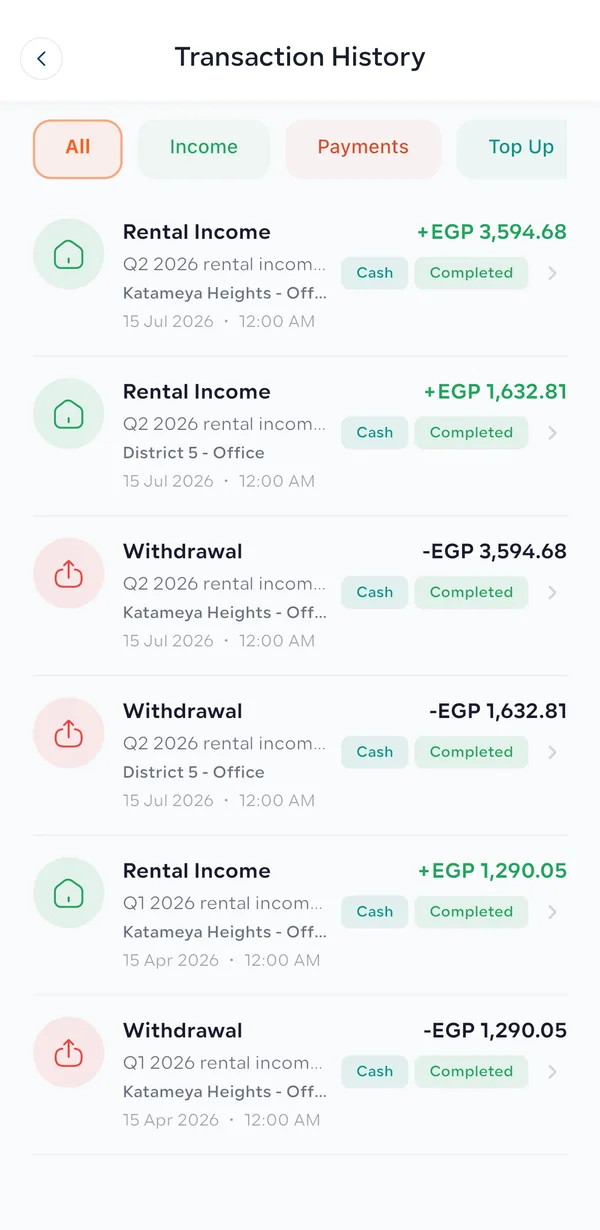
Tap Transaction History, or View All next to Recent Transactions, to see every movement in your wallet, newest first. Use the tabs at the top to filter the list:
- All
- Every transaction.
- Income
- Rental income paid to you (green, with a plus sign).
- Payments
- Money that left your wallet: withdrawals, their fees, and wallet money used for investments (red, with a minus sign).
- Top Up
- Money you added to your wallet, including requests still waiting for review.
Each line shows its type (Rental Income, Withdrawal, Top-up…), a short description, the property it relates to, and the date and time. It also carries two tags. The first says which balance it affected: Cash, or Rewards. The second is its status: for example Completed, Pending or Rejected. Tap a line to open Transaction Details: the description, amount, direction, balance type, created and last-updated dates, the property, and a transaction ID.
Your previous rental payouts are all in your history too. Payouts made before the wallet existed were transferred directly to your bank account. Each of them appears as a pair of lines on the same date: a green Rental Income line for the amount you earned, and a red Withdrawal line for the same amount. The Withdrawal line records that the money was sent to your bank at the time. Open it and its description reads “… rental income paid out by bank transfer”. It is not a new deduction, and it does not change your balance today.
Part 4
How to add money to your wallet
Add money when you want to invest from your wallet, or when your balance is not enough for the investment you have chosen. You make the transfer outside the app, with your bank or InstaPay, or in cash at the bank. You then tell us about it in the app so we can match it to your account.
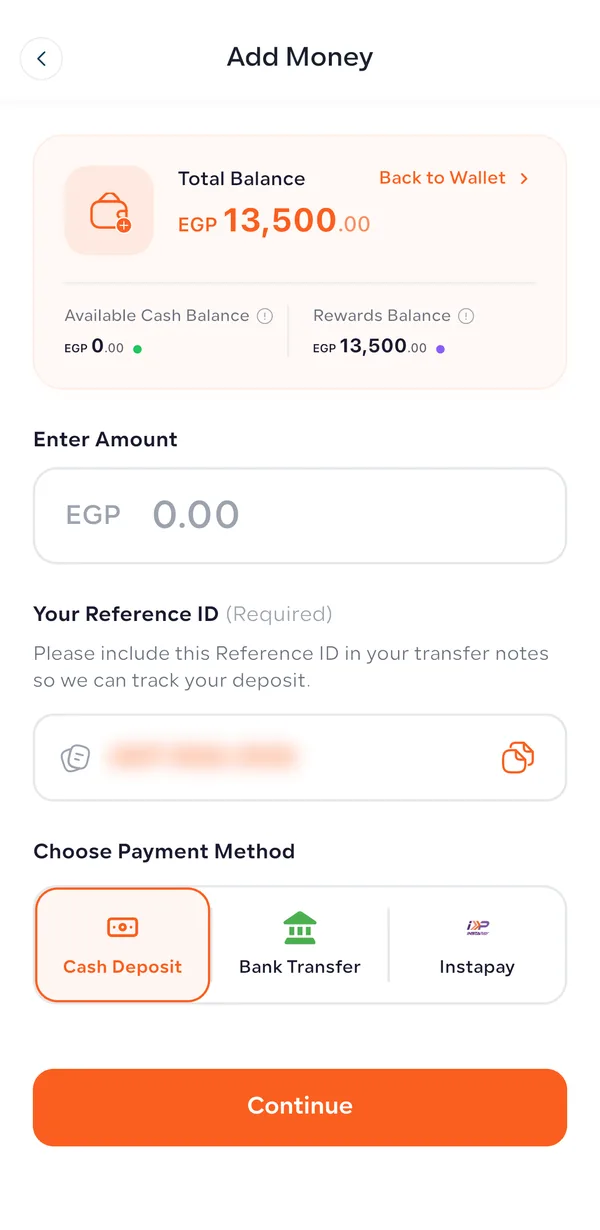
- 1Go to Wallet and tap Add Money.
- 2Enter the amount you are going to send, in EGP.
- 3Copy your Reference ID (it looks like AMT-0000-2026) with the copy button. Put it in the notes of your transfer or deposit. This is how our finance team knows the money is yours, so do not skip it.
- 4Choose how you are paying: Cash Deposit, Bank Transfer or InstaPay. Tap Continue. The next screen shows the Amtaar account details to send to.
- 5Make the transfer or deposit, then upload a photo or PDF of the receipt as proof of payment (up to 20 MB).
- 6Our finance team checks the transfer against the Reference ID. When it is confirmed, the amount is added to your Available Cash Balance and you get a “Wallet Top-Up Approved” notification.
Until it is confirmed, your top-up shows in the Top Up tab as Pending. If we receive less than the amount you entered, the top-up is marked as insufficient and the app tells you how much is still needed. You can send the rest, and it is linked to the same top-up. If a top-up cannot be accepted, it is marked Rejected with the reason, and nothing is added to your balance. You can cancel a top-up yourself while it is still waiting for review.
Part 5
How to withdraw money to your bank account
You can withdraw your Available Cash Balance, including all your rental income, to a bank account in your own name whenever you want. Rewards cannot be withdrawn.
- 1Add your bank account once: bank name, account holder name, account number and IBAN. The account must be in your name, matching your verified name in the app. Your first account becomes your default.
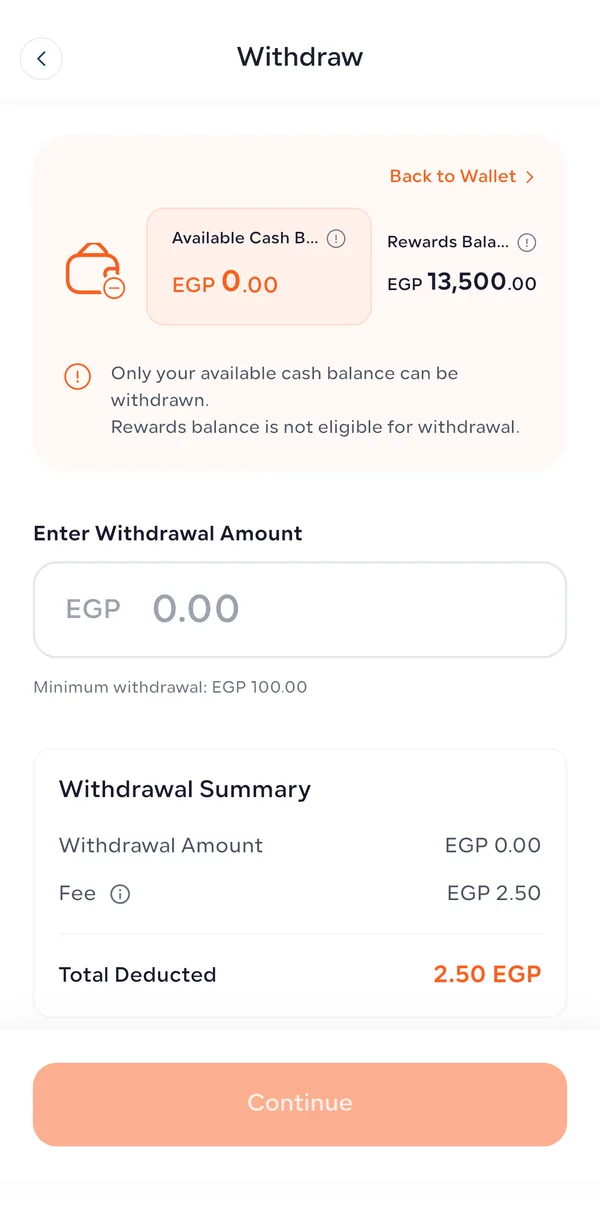
- 2Go to Wallet and tap Withdraw. The screen shows how much of your Available Cash Balance you can withdraw.
- 3Enter the amount. The minimum withdrawal is currently EGP 100.
- 4Check the Withdrawal Summary. It shows the amount, the fee (currently EGP 2.50) and the Total Deducted from your wallet (amount + fee).
- 5Choose the bank account and tap Continue to submit the request.
- 6Our finance team reviews and approves it, then transfers the money to your bank. The transfer takes 1 to 3 days. When it is sent, the withdrawal shows Completed and you get a “Withdrawal Completed” notification.
The amount plus the fee is set aside as soon as you submit, so it no longer counts in your Available Cash Balance while the withdrawal is being processed. If a withdrawal is rejected, or the bank transfer fails (for example because of a wrong IBAN), the full amount and the fee are returned to your wallet. The notification tells you the reason.
Part 6
How to invest using your wallet balance
Your wallet balance, including your rental income and any rewards, can go straight into your next investment. You do not need to withdraw it and send it back.
- 1Tap Invest Now on the Wallet screen, or start from any property. Choose a commercial property and the number of shares with + and −. The bottom of the screen shows your total wallet balance, the shares selected and the total amount. Tap Next.
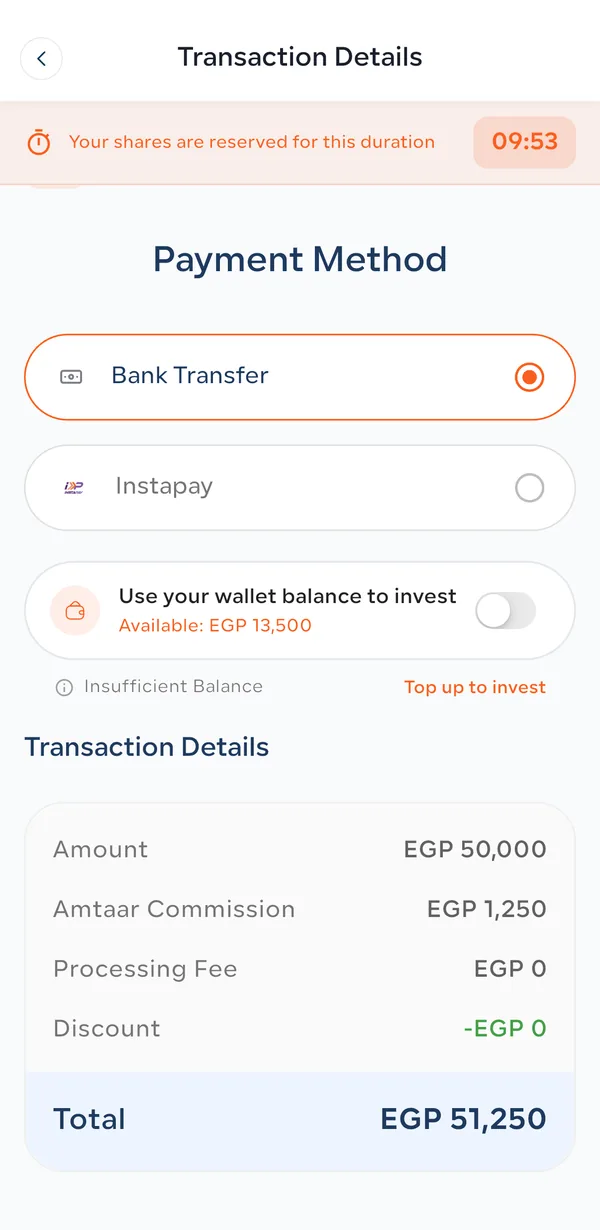
- 2Your shares are now reserved for 10 minutes while you complete payment. The timer is at the top of the screen.
- 3On the Payment Method screen, turn on “Use your wallet balance to invest”. It shows how much is available.
- 4Check the Transaction Details: the amount, Amtaar commission, processing fee, any discount, and the Total.
- 5If your wallet covers the total, confirm, and the investment is paid from your wallet.
- 6If it does not, the app shows “Insufficient Balance”. Tap “Top up to invest” to add the difference by bank transfer, cash deposit or InstaPay, as in the Add Money steps above.
Wallet money you use for an investment is set aside for that order, so it cannot be withdrawn at the same time. If the payment for the order is rejected, the wallet amount goes back to your Available Cash Balance.
Wallet FAQ
Every common question about your wallet, rental payouts, top-ups and withdrawals.
The wallet
What is the Amtaar Wallet?
It is your account balance inside the Amtaar app. Your rental income is paid into it. You can add money to it, invest from it, and withdraw from it to your bank account. Open it from Wallet in the app’s bottom bar.
Do I need to do anything to get a wallet?
No. Every investor has one. It is created automatically the first time money is paid into it, for example your first rental payout.
What is the difference between Available Cash Balance and Rewards Balance?
Available Cash is your own money: rental income and money you added. You can invest it or withdraw it. Rewards Balance is credit from Amtaar, such as a referral reward. You can use it towards an investment, but you cannot withdraw it.
Why is my Available Cash Balance lower than I expected?
Money you have committed is set aside and does not count as available. That includes a withdrawal you have requested (amount plus fee) and wallet money you used in a checkout. Transaction History shows each of these. If a withdrawal is rejected or a payment is refused, the money returns to your available balance.
Does money in my wallet earn a return?
No. Only shares in a property earn rental income. Wallet money is ready for you to withdraw, or to invest in a property so it starts earning.
What currency is the wallet in?
Egyptian pounds (EGP). Rent from a property leased in US dollars is converted to EGP before it is paid into your wallet.
Rental income & past payouts
Where does my rental income go now?
Into your Amtaar Wallet, as Available Cash. It stays there until you withdraw it to your bank or use it for another investment. You decide when.
When is rental income paid?
Every quarter. Payouts are scheduled for the 1st of the month after the quarter ends: 1 January, 1 April, 1 July and 1 October. The money is credited once that quarter’s rent has been collected from the tenant and approved by our finance team. Your portfolio shows your next expected payout.
How is my payout calculated?
The rent collected for the property that quarter, minus the management fee (5% on current contracts), is split by shares. You receive your share for each full month you held your shares during the quarter.
I bought shares mid-month. When do I start earning?
From the 1st of the following month. For example, shares bought on 14 May earn rent from June onwards.
I sold shares. Which months am I paid for?
The full months you held them before the month of the sale. The month the shares change hands is not paid to either the seller or the buyer.
Where can I see my previous payouts?
In Wallet → Transaction History. Tap the Income tab to see rental income only. Each line shows the quarter, the property and the date the money was paid.
Why does each old payout show a Rental Income line and a Withdrawal line for the same amount?
Payouts made before the wallet launched were transferred straight to your bank account. We added them to your wallet history so you have one complete record. The green Rental Income line is what you earned. The red Withdrawal line on the same date records that it was sent to your bank. Its description reads “… rental income paid out by bank transfer”. It is not a new deduction, and your balance is not affected.
My rental income for a quarter is missing. What should I check?
Rental income is credited after the tenant’s rent for that quarter has been collected and approved, so it can arrive after the scheduled date. Rent that is paid late is credited as a separate line marked “(late rent)”. If a quarter still looks wrong, send us the property name and quarter on WhatsApp.
I own shares in two properties. Why do I get two lines?
Each property pays out separately, so you get one Rental Income line per property each quarter, each showing the property name.
Adding money
How do I add money to my wallet?
Go to Wallet → Add Money. Enter the amount and copy your Reference ID. Choose Cash Deposit, Bank Transfer or InstaPay, and make the payment with your Reference ID in the notes. Then upload the receipt. The money is added once our finance team confirms it.
What is the Reference ID and why do I need it?
It is a code unique to your account, in the form AMT-0000-2026. Putting it in your transfer notes lets our finance team match the money to you. Without it, your top-up can be delayed.
Can I top up with a debit or credit card?
Not for wallet top-ups. You can use a bank transfer, a cash deposit at the bank, or InstaPay.
Is there a minimum or maximum top-up?
No. Enter the amount you are actually sending.
My top-up says Pending. What does that mean?
We have your request and your receipt, and our finance team is matching the transfer to your account. When it is confirmed you get a “Wallet Top-Up Approved” notification, and the amount moves into your Available Cash Balance.
What if I sent less than the amount I entered?
The top-up is marked as insufficient, and the app tells you how much is still needed. Send the rest (it is linked to the same top-up), and the full amount is credited once it arrives.
Why was my top-up rejected?
The rejection notification includes the reason, for example an unclear receipt or a transfer we could not find. Nothing is added to your balance. You can submit a new top-up with the correct details.
Can I cancel a top-up?
Yes, as long as it is still waiting for review.
Why does the app ask me to verify my profile before I top up?
Adding money requires a fully verified profile: phone, email, PIN and identity. This protects your account and is required for regulated investment. Finish any missing steps from your Profile.
Withdrawals
How long does a withdrawal take?
After you submit it, our finance team reviews and approves it, and the transfer to your bank takes 1 to 3 days. When the money is sent, the withdrawal shows Completed and you get a notification.
How much can I withdraw?
Up to your Available Cash Balance, including all your rental income. The minimum withdrawal is currently EGP 100. Rewards Balance cannot be withdrawn.
Is there a withdrawal fee?
Yes, currently a flat EGP 2.50 per withdrawal. The Withdrawal Summary shows it before you confirm. The total deducted from your wallet is the amount plus the fee.
Where does my withdrawal go?
To a bank account in your own name that you have added in the app, with the bank name, account number and IBAN. The account holder name must match your verified name. Withdrawals are sent by bank transfer only.
Can I withdraw to someone else’s account?
No. For your protection, withdrawals only go to a bank account in your own name.
What happens to my balance while a withdrawal is being processed?
The amount plus the fee is set aside as soon as you submit the request, so it no longer shows in your Available Cash Balance. That stops the same money being spent twice.
What if my withdrawal is rejected or the transfer fails?
The full amount and the fee go back to your wallet automatically, and the notification explains why. A wrong IBAN is the most common cause, so check your bank details and try again.
Can I cancel a withdrawal?
You cannot cancel it from the app once it is submitted. Contact Amtaar support on WhatsApp as soon as possible. Before the transfer is sent, it can be rejected and the money returned to your wallet.
Can I have more than one withdrawal in progress?
Yes. Each request is set aside from your available balance separately.
Why can’t I withdraw my Rewards Balance?
Rewards are credit from Amtaar, such as a referral reward, and are meant for investing. Use them towards your next investment.
Investing from the wallet
Can I use my wallet to buy shares?
Yes. At checkout, on the Payment Method screen, turn on “Use your wallet balance to invest”. You can also tap Invest Now on the Wallet screen.
What if my wallet does not cover the full amount?
The app shows “Insufficient Balance”. Tap “Top up to invest” to add the difference by bank transfer, cash deposit or InstaPay.
Can I use my Rewards Balance to invest?
Yes. That is what rewards are for. The Invest from Wallet screen says it directly: your cash balance and your rewards balance can both be used to invest.
What happens to my wallet money if my investment payment is rejected?
The wallet amount you used returns to your Available Cash Balance, and you can use it again or withdraw it.
How long are my shares held while I pay?
10 minutes. The timer is shown at the top of the checkout screen. Finish the payment within that time to secure your shares.