Amtaar app guide
How to invest in a property with the Amtaar app
Buying shares in a commercial property takes a few minutes in the app. This guide follows one real investment from the property list to the signed contract, with the screen you will see at each step.
Updated 4 October 2026 · Amtaar app version 1.10
In short
- Verify your profile first: phone, email, PIN and a face check. Investing is locked until all four are done.
- On Home, open the Available tab, pick a property and check its share price, shares left and 5-year forecast.
- Choose the number of shares (the minimum is one share) and tap Invest. Your shares are held for 10 minutes while you pay.
- Pay by bank transfer or InstaPay and upload your receipt, or pay from your wallet. The total includes Amtaar’s 2.5% commission.
- Our finance team confirms the payment, your shares appear under Portfolio → My Properties, and your contract follows for signing.
- 1 shareMinimum investment per property
- 10 minYour shares are held while you pay
- 2.5%Amtaar commission, added at checkout
- QuarterlyRental income paid into your wallet
Part 1
Before you start: verify your profile
Amtaar is a regulated investment platform, so you must verify who you are before you can buy shares. The app walks you through it after you sign up: confirm your phone number, confirm your email, create your 6-digit PIN, and complete a short face check with your national ID.
If a step is missing, the app tells you which one when you try to invest. Finish it and come back. See the getting-started guide for each step.
Part 2
Browse properties on the Home tab
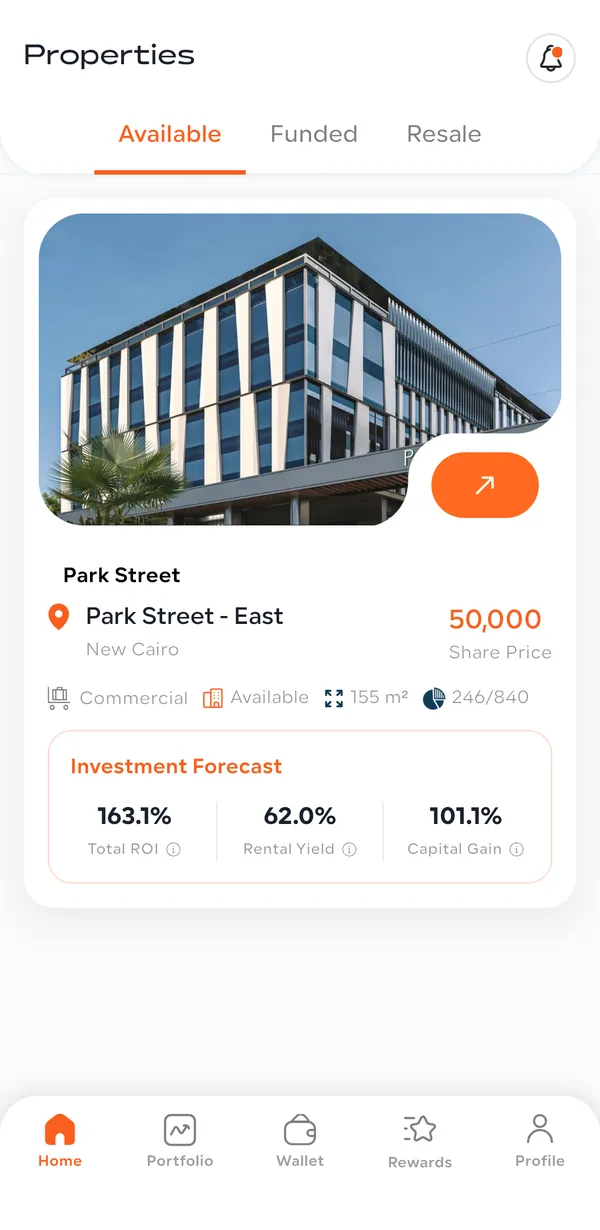
The Home tab lists Amtaar’s properties in three tabs:
- Available
- Properties you can invest in now. Each card shows the price per share, the property type and area, how many shares are left (for example 246 / 840), and the Investment Forecast: Total ROI, Rental Yield and Capital Gain.
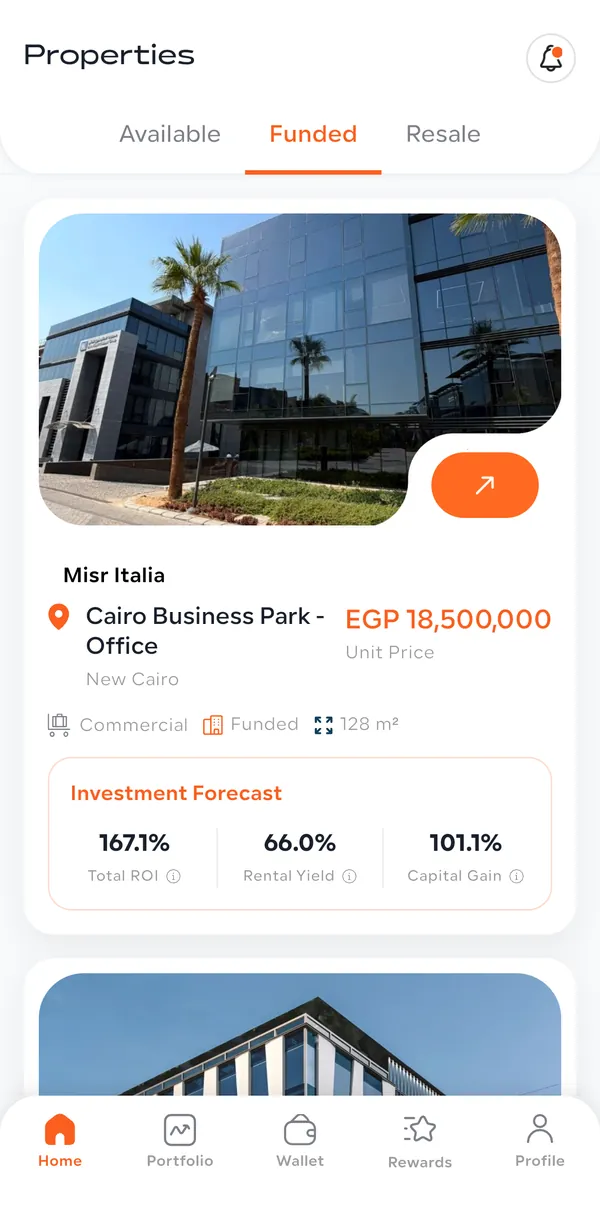
- Funded
- Properties whose shares are fully sold. They show the full unit price and the same forecast, so you can see the kind of property Amtaar offers. You cannot buy into them from this tab.
- Resale
- Shares offered by other investors. This tab shows “Coming soon”: resale is not open in the app yet.
Part 3
Read the property page
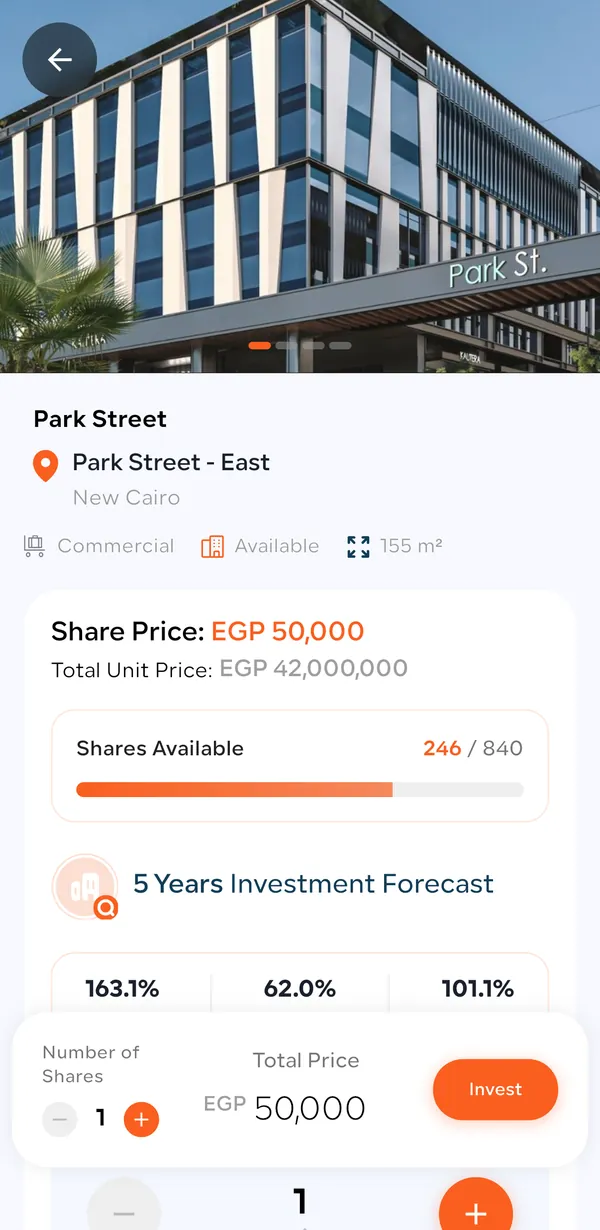
Tap a property to open its page. Read it from top to bottom before you invest:
- Share price and total unit price
- What one share costs, and the price of the whole unit it is a share of.
- Shares available
- How many shares are still for sale out of the total, with a progress bar.
- 5 Years Investment Forecast
- Three figures: Total ROI (the expected total return over five years), Rental Yield (the part from rent) and Capital Gain (the part from the property rising in value).
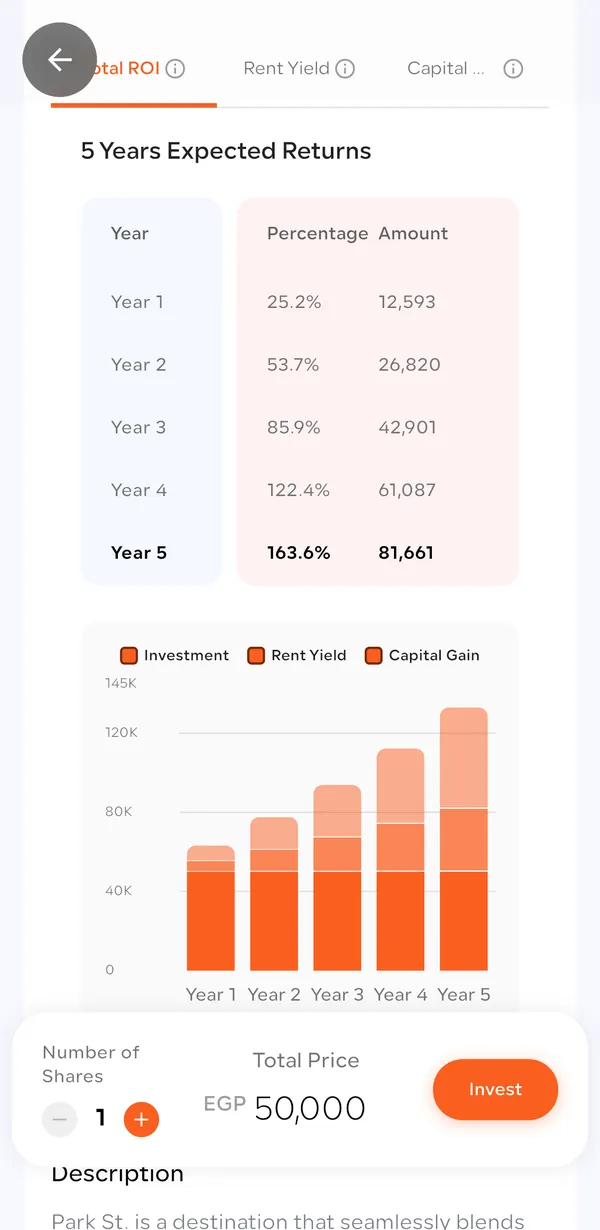
- 5 Years Expected Returns
- Switch between the Total ROI, Rent Yield and Capital Gain tabs to see a year-by-year table (percentage and amount for the shares you selected) and a chart.
- Description, amenities and location
- What the property is, its amenities (such as access, security, workspace and Wi-Fi), and its address with View on map.
The amounts in the forecast table change with the number of shares you select at the bottom of the screen, so you can see the expected return on your own investment.
Part 4
Choose your shares and check out
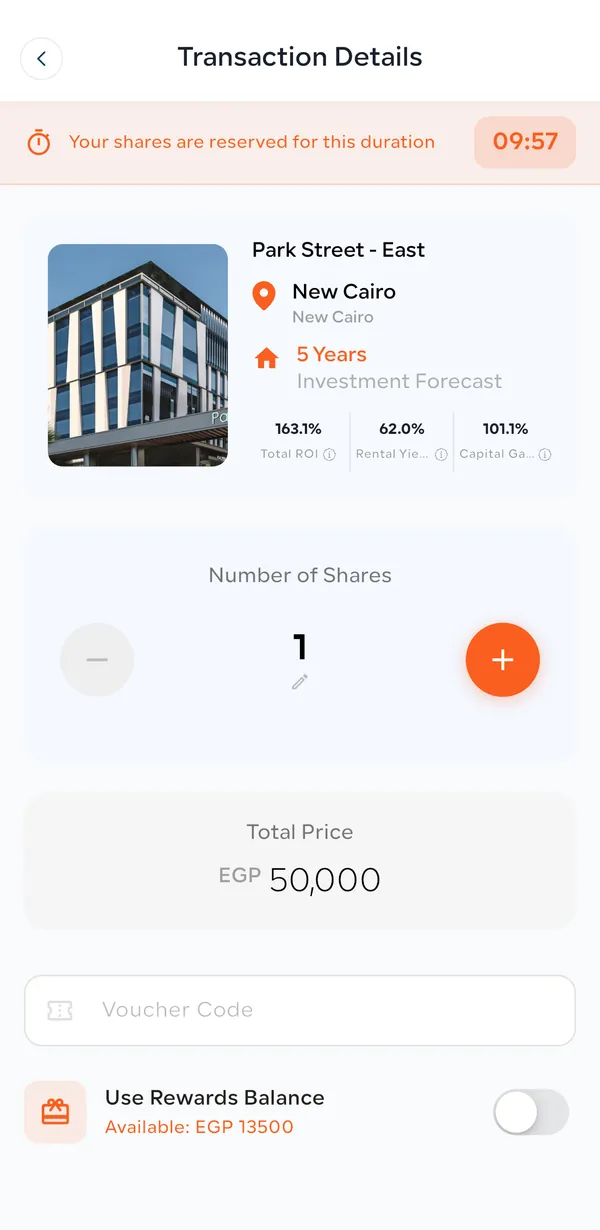
- 1At the bottom of the property page, set the Number of Shares with − and +. Total Price updates as you go. The minimum is one share.
- 2Tap Invest. The Transaction Details screen opens and a timer shows “Your shares are reserved for this duration” (10 minutes).
- 3Check the property and the number of shares. If you have a voucher, type it in the Voucher Code field.
- 4To use referral rewards, turn on Use Rewards Balance. It shows how much you have available.
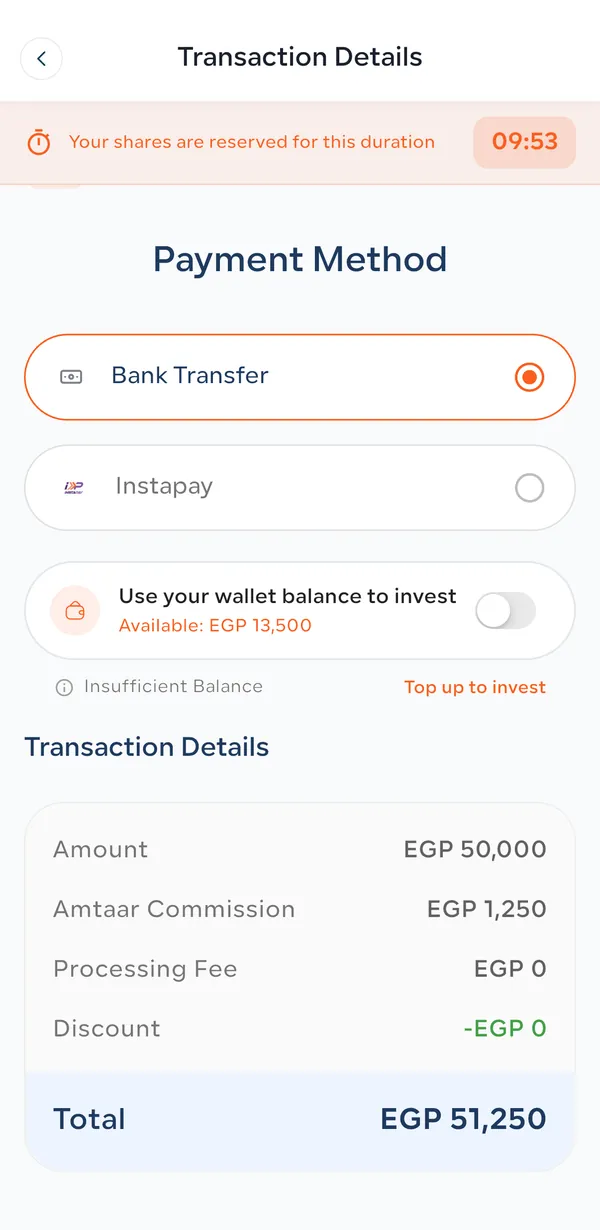
- 5Choose a Payment Method: Bank Transfer or Instapay. To pay from your wallet, turn on “Use your wallet balance to invest”.
- 6Check the Transaction Details: Amount, Amtaar Commission, Processing Fee, Discount and Total. Example: 1 share at EGP 50,000 + EGP 1,250 commission = EGP 51,250.
Part 5
Pay and upload your proof of payment
- 1Transfer the exact Total to the Amtaar bank account shown in the app, by bank transfer or InstaPay. Put your personal reference ID (it looks like AMT-0000-2026) in the transfer notes.
- 2Upload a photo or screenshot of the receipt in the app before the 10-minute timer ends. You can attach up to 5 images.
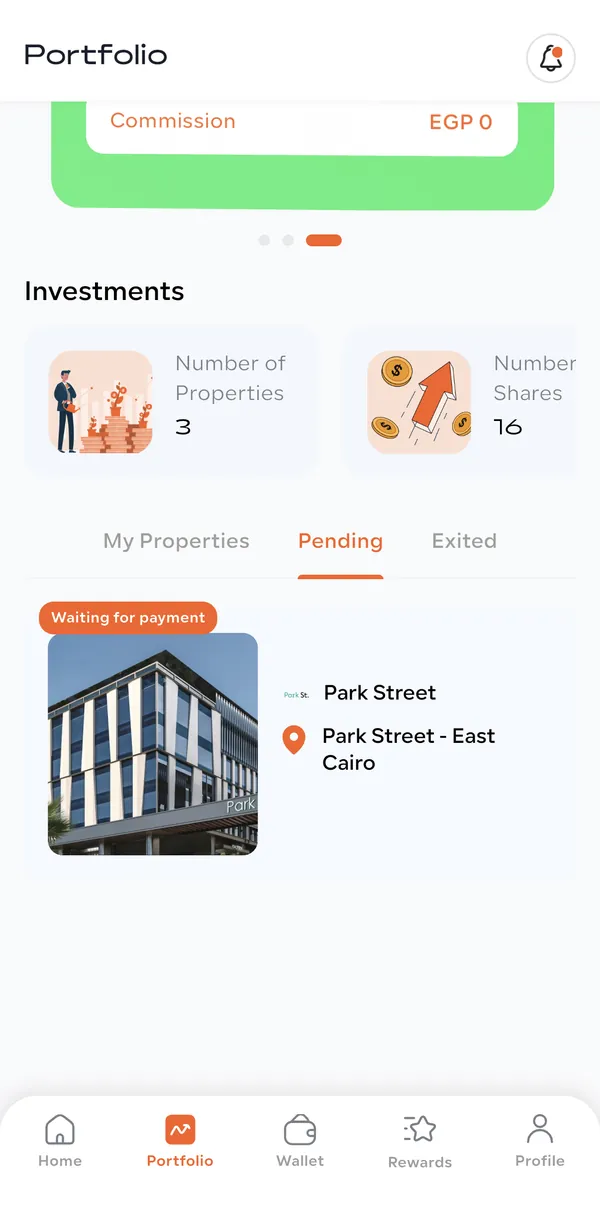
- 3That’s it: your order is created and sent to our finance team. It appears under Portfolio → Pending while it is reviewed.
If your wallet covers the whole total, you pay from the wallet and there is nothing to transfer. If it covers part of it, you transfer only the rest. The wallet guide explains this in detail.
If the timer runs out before you upload the receipt, the reserved shares are released. Start again from the property page.
Part 6
After you pay: confirmation and your shares
Our finance team checks your transfer. You get a notification with the result:
- Payment accepted
- Your payment is confirmed and the order is being processed.
- Additional payment required
- The amount received was less than the total. The notification tells you how much is still needed; send the rest from the app.
- Payment rejected
- For example, the receipt was unclear or the transfer was not found. The notification gives the reason, and you can retry the payment.
Your shares are issued when the payment is accepted and the property’s funding is complete. You then get an “Investment Confirmed” notification and the property moves from Pending to My Properties in your Portfolio.
Your shares start earning rent from the 1st of the month after your purchase. Rental income is paid into your wallet every quarter.
Part 7
Sign your contract
- 1When your contract is ready you get a “Your Contract Is Ready to Sign” notification.
- 2Download the contract PDF from the app, print it and sign it.
- 3Upload a scan or clear photo of the signed contract (PDF or image, up to 20 MB).
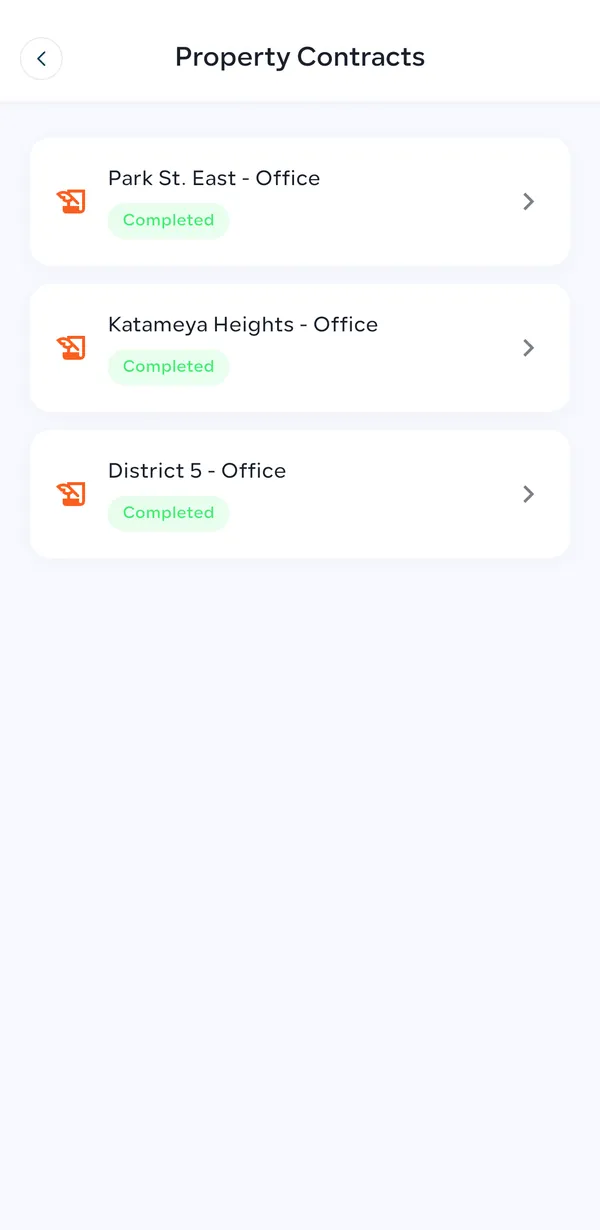
- 4Amtaar reviews it. When it is approved the contract shows Completed, and you can view or download the signed copy at any time from Profile → Property Contracts or from the property in your Portfolio.
If a signed copy is rejected (for example a page is missing), the notification explains why and you can upload it again.
Part 8
Cancelling an order, and selling shares later
Before you upload your receipt, you can cancel an order at no cost. After the receipt is uploaded, cancelling becomes a request that Amtaar approves, and a cancellation fee may apply. The app shows the exact deduction and refund before you confirm. Once your shares are issued, the order can no longer be cancelled in the app.
Selling shares is not done in the app yet: the Resale tab shows “Coming soon”. To sell your shares, contact Amtaar support and the team will arrange it with you. Read how selling works in the FAQ.
Common questions
What is the minimum investment in the Amtaar app?
One share of a property. The share price is shown on each property, for example EGP 50,000 for Park Street East. Prices differ between properties.
Do I need to verify my account before investing?
Yes. You must confirm your phone and email, create a PIN and complete the face check. Until then the app shows which step is missing when you try to invest.
How long are my shares reserved at checkout?
10 minutes. Upload your proof of payment before the timer ends, or the shares are released and you need to start again.
What fees do I pay when I invest?
An Amtaar commission of 2.5% of the share value, shown at checkout before you pay. For example, EGP 50,000 of shares costs EGP 51,250 in total. The processing fee is currently EGP 0.
How can I pay for my shares?
By bank transfer or InstaPay with a receipt upload, from your Amtaar wallet balance, or with a mix of wallet and transfer. Referral rewards and vouchers can reduce the amount.
Can I invest in more than one property?
Yes. Invest in as many properties as you like. Each one appears separately in your Portfolio and pays its own rental income.
When do my shares start earning rent?
From the 1st of the month after your purchase. Rental income is paid quarterly into your Amtaar wallet.
Where do I see my investment after paying?
In Portfolio → Pending while the payment is reviewed, then in Portfolio → My Properties once your shares are issued.
Is the 5-year forecast guaranteed?
No. It is Amtaar’s projection based on the property’s rent and expected value growth. Actual returns depend on rent being paid and on the property market.
Can I sell my shares in the app?
Not yet. The Resale tab shows “Coming soon”. To sell, contact Amtaar support and the team will arrange the sale with you.