Amtaar app guide
Your profile and account in the Amtaar app
The Profile tab holds your personal and bank details, your payment history, your property contracts, and help. This guide walks through each item in the order it appears.
Updated 4 October 2026 · Amtaar app version 1.10
In short
- Tap Profile in the bottom bar to see your name and email and the full menu.
- Account Information shows your personal info and the bank details used for withdrawals. Tap Edit to update them.
- Your bank account must be in your own name, matching your verified ID, with a valid IBAN.
- Transaction History lists the payments you made for investments with your receipts. Property Contracts lists your contracts to view or download.
- Help and Support has Contact Support, the Terms of Service and FAQs. Logout and Delete Account are at the bottom.
Part 1
The Profile menu
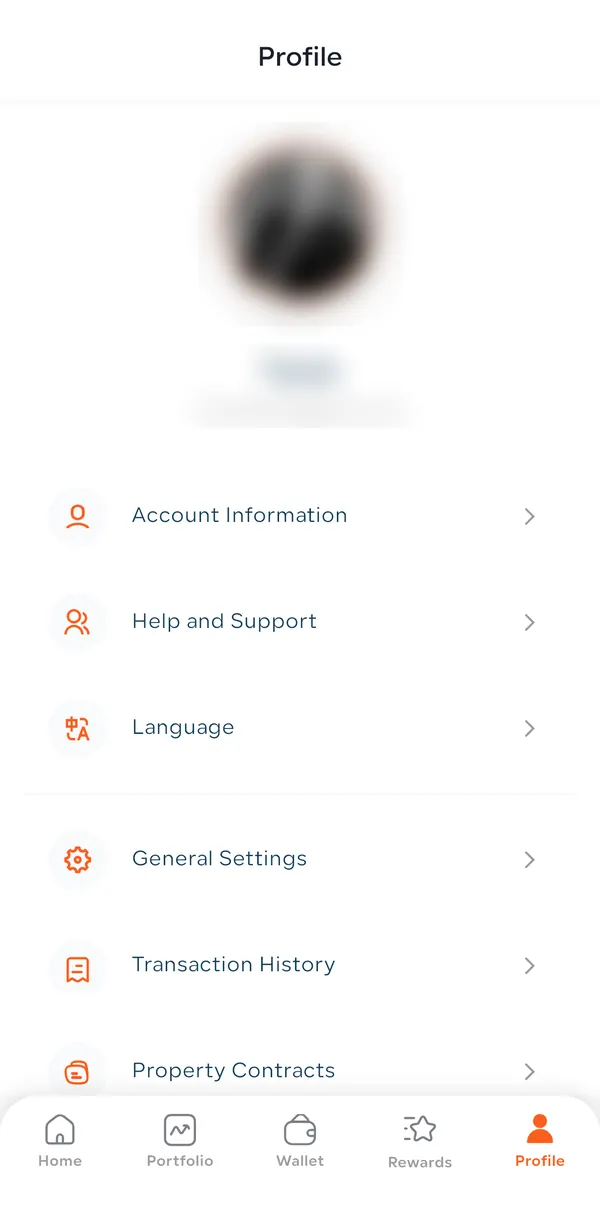
Tap Profile in the bottom bar. Under your photo, name and email you’ll find:
- Account Information
- Your personal info and bank details.
- Help and Support
- Contact support, Terms of Service and FAQs.
- Language
- Switch between English and العربية.
- General Settings
- Your app preferences, such as security and notification options.
- Transaction History
- The payments you made for investments.
- Property Contracts
- Your contracts for each property.
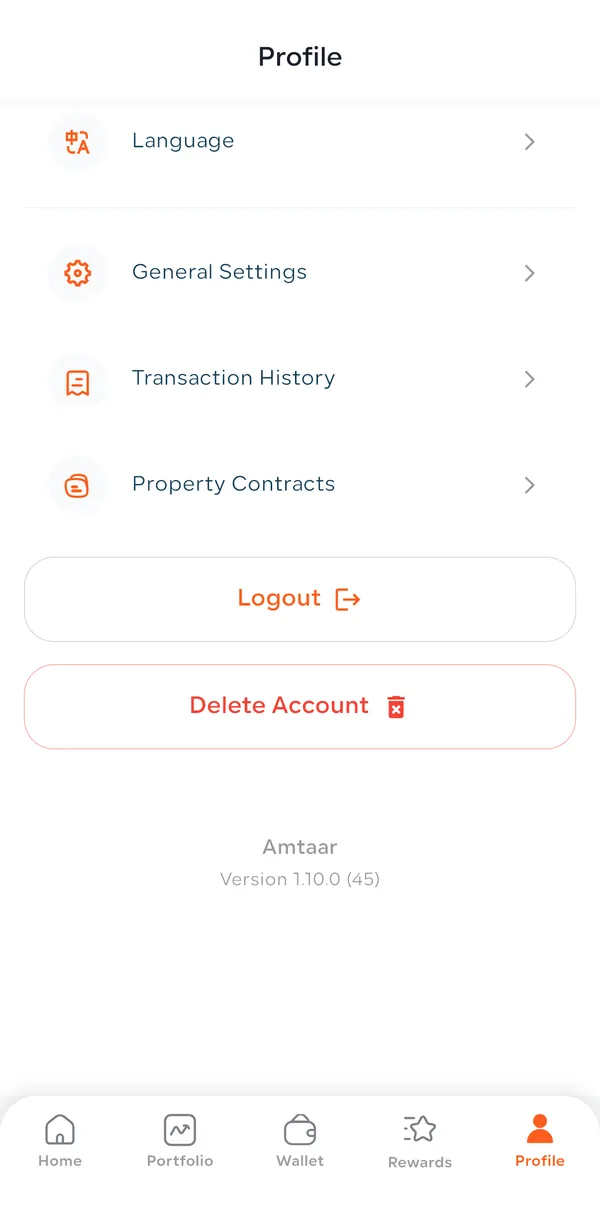
The bottom of the screen has Logout, Delete Account, and the app version you are using (for example Version 1.10.0).
Part 2
Account Information and bank details
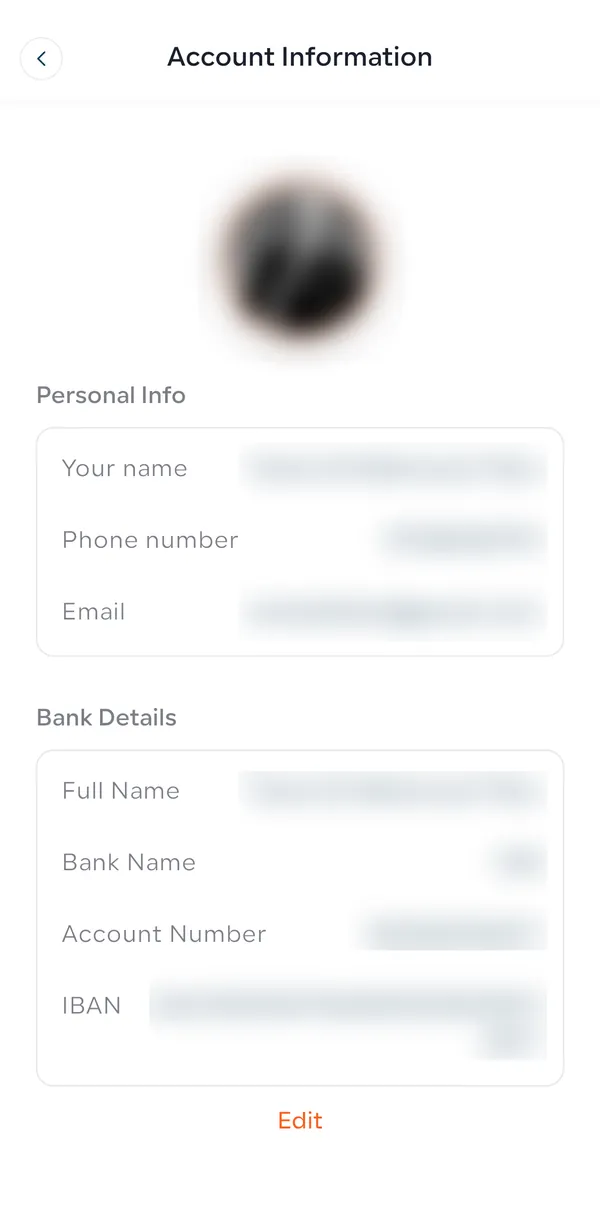
Account Information has two parts. Tap Edit at the bottom to change them.
- Personal Info
- Your name, phone number and email. Your name comes from your verified national ID. To change your email, confirm the new one with a code. Your phone number can only be changed by Amtaar support.
- Bank Details
- Full Name, Bank Name, Account Number and IBAN. This is where your wallet withdrawals are sent.
The bank account must be in your own name: the account holder name has to match the name on your verified ID. The IBAN must be valid; an Egyptian IBAN starts with EG and is 29 characters long. The same IBAN cannot be saved twice.
Part 3
Transaction History and Property Contracts
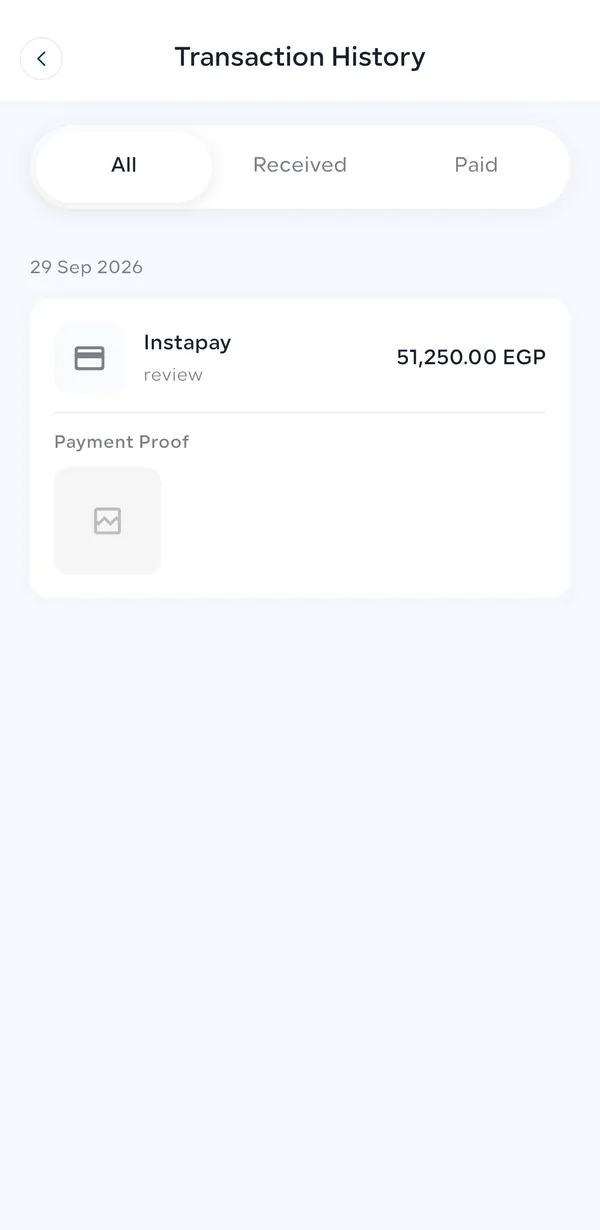
- Transaction History
- The payments you made to buy shares, by date, with the method (for example Instapay), the amount, the status and your payment proof. Use the All, Received and Paid tabs to filter. Wallet movements such as rental income and withdrawals are in the Wallet tab.
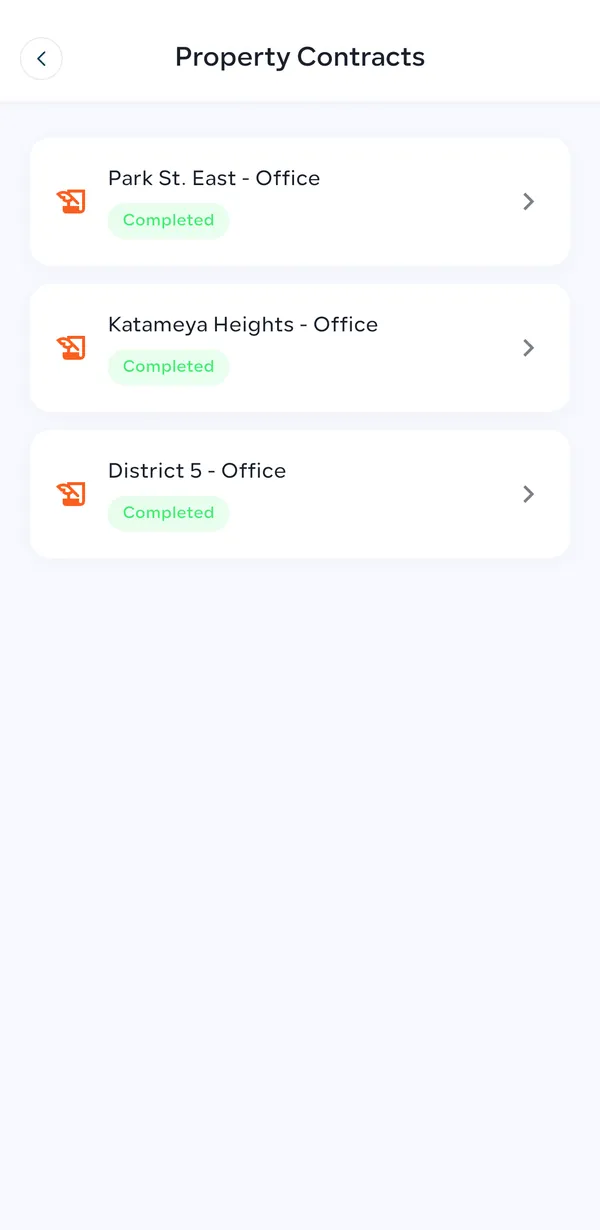
- Property Contracts
- One contract per property, with its status. Completed means the signed contract is approved; tap it to view or download it. If a contract is ready to sign, open it to download, sign and upload it.
Part 4
Help and Support
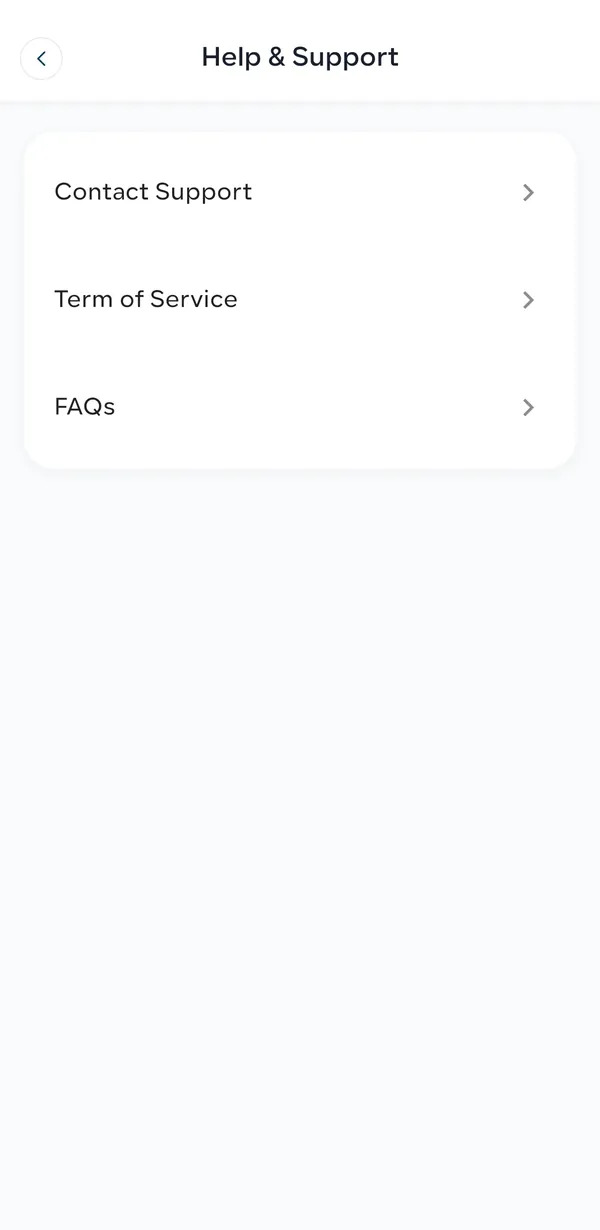
Tap Help and Support for three options: Contact Support (send us a message from the app; we reply within 24 hours), Terms of Service, and FAQs.
You can also message Amtaar on WhatsApp at any time using the button on this website.
Part 5
Log out, or delete your account
Logout signs you out of the app on this phone. Next time, sign in with your phone number and SMS code or your PIN.
Delete Account removes your account permanently. You can only delete it once nothing is still open: no properties in your portfolio, no money in your wallet, and no orders, top-ups or withdrawals in progress. If something is still open, the app tells you what. Withdraw your wallet cash and settle any open items first.
Common questions
How do I add or change my bank account?
Go to Profile → Account Information and tap Edit. Enter the account holder’s full name, bank name, account number and IBAN. The account must be in your own name.
Why was my bank account rejected?
Usually because the account holder name does not match the name on your verified ID, the IBAN format is wrong, or that IBAN is already saved on your account.
Can I change my name?
Your name comes from your verified national ID, so it matches your official documents. Contact support if it looks wrong.
How do I change my phone number?
Contact Amtaar support. For your security, phone numbers are changed by the team after checking the request.
Where can I download my contract?
Profile → Property Contracts. Tap the contract to view or download it. It is also on the property’s page in your Portfolio.
Where do I see my past payments?
Profile → Transaction History shows the payments you made for investments with your receipts. Rental income and withdrawals are in the Wallet tab.
How do I contact Amtaar support?
In the app: Profile → Help and Support → Contact Support. Or message us on WhatsApp from this website.
How do I delete my Amtaar account?
Profile → Delete Account. You must first have no properties, no wallet balance and no orders, top-ups or withdrawals in progress. Deletion is permanent.
How do I check which app version I have?
Scroll to the bottom of the Profile tab. The version is shown under Delete Account.